

App: Fix missing press notifications
The FluentPet app can notify you, for example when your learner presses a Connect Button. If you do not receive any notifications, work through the steps below.
Turn on push notifications in the app
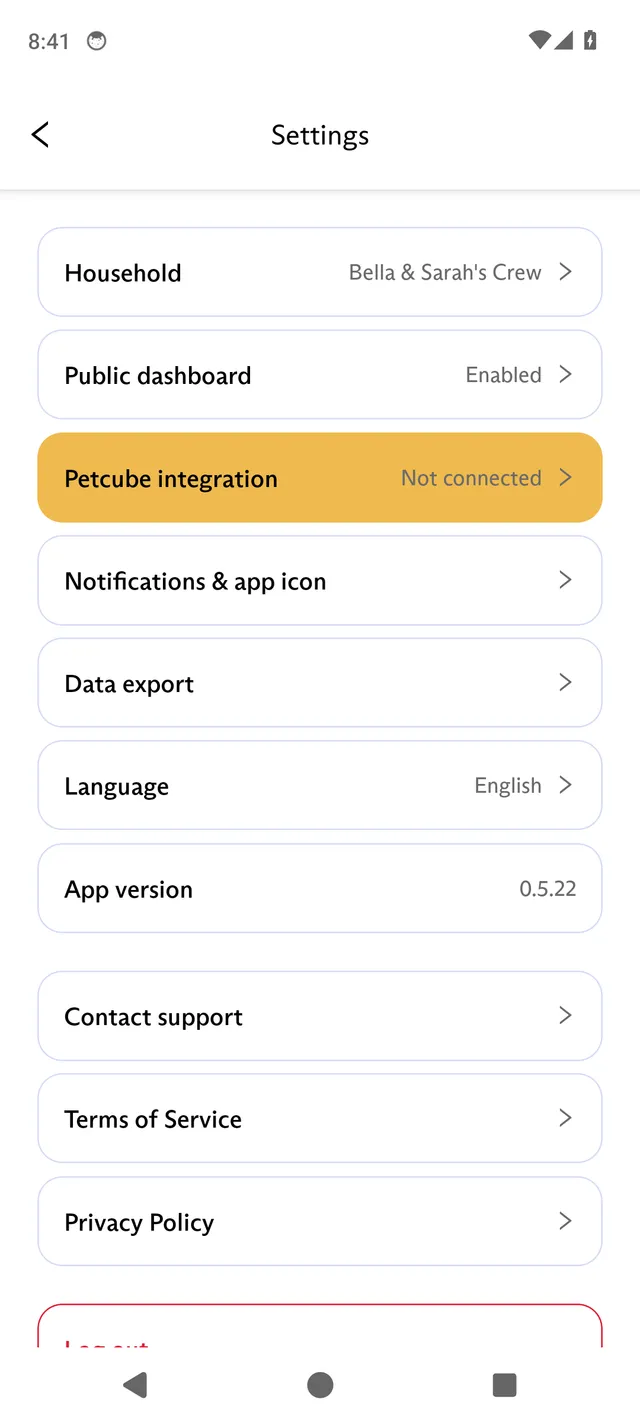
Section titled “Turn on push notifications in the app”- In the app, tap the menu icon at the top left, then tap Settings.
- Tap Notifications & app icon.
- Turn on Push notifications.
Allow notifications on your phone
Section titled “Allow notifications on your phone”When the app asks for permission to send notifications, allow it. This lets the app notify you, for example when your learner presses a Connect Button. If you declined earlier, turn notifications on in your phone settings.
Android
Section titled “Android”- Open Settings > Apps > FluentPet > Permissions.
- Select Notifications.
- Tap Allow.
iPhone
Section titled “iPhone”- Open Settings > Notifications > FluentPet.
- Turn on Allow Notifications.
Sign out and sign back in
Section titled “Sign out and sign back in”- In the app, tap the menu icon at the top left, then tap Settings.
- Scroll down and tap Log out.
- Open the app and sign back in.
If that does not help, uninstall the app and install it again.
Turn off Do Not Disturb
Section titled “Turn off Do Not Disturb”When your phone is in Do Not Disturb mode, it holds back notifications. Turn off Do Not Disturb, or allow FluentPet notifications, during the hours you want to receive them.