

Connect Base: Read the LED and use the Base Button
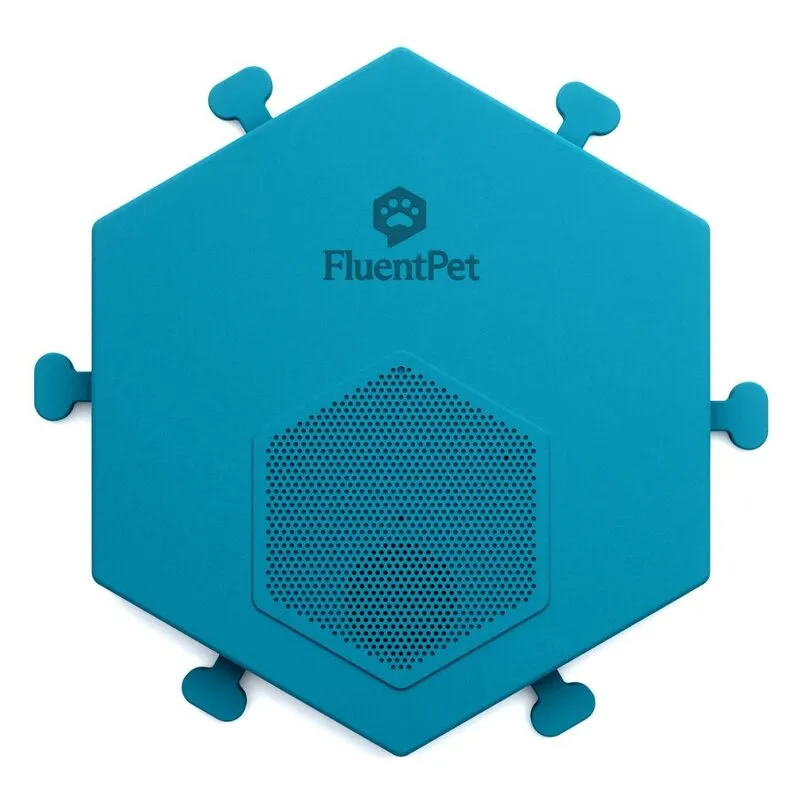
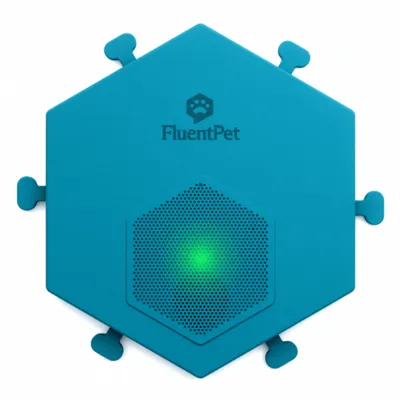
The Connect Base has one button, the Base Button, on the bottom of the Base. The LED is in the center of the speaker grill. This page explains what each Base Button press does and what the LED shows.
Base Button gestures
Section titled “Base Button gestures”| What you do | What happens |
|---|---|
| Press once | The Base enters Wi-Fi mode (sync). |
| Double-click | The Base leaves Wi-Fi mode or setup mode. |
| Hold for 4 to 10 seconds, then release | The Base enters setup mode. |
| Hold for more than 15 seconds, then release, while the Base is idle and not charging | The Base enters travel mode. |
| Press once in travel mode | The Base leaves travel mode. Plugging in the charging cable also does this. |
| Press five times in a row, less than half a second apart, and hold the fifth | The Base resets to factory settings after 10 seconds of holding. Not from travel mode. |
There are no other Base Button gestures.
Base modes
Section titled “Base modes”Sleep is the normal state. The LED is off, and the Base plays the word of a linked Button when the Button is pressed.
Wi-Fi mode (sync)
Section titled “Wi-Fi mode (sync)”Press the Base Button once while the Base is idle. The Base plays a sound and connects to FluentPet to exchange data such as presses and sounds. It also accepts a Button in link mode. The LED shows this sequence:
- The LED breathes blue while the Base connects. If it cannot join the network within about 90 seconds it gives up and the LED goes off; press the Base Button once to try again.
- It turns solid blue once connected.
- It breathes cyan while the Base connects to the FluentPet servers.
- It turns solid cyan once connected.
Presses made while the Base is in Wi-Fi or setup mode are not recorded.
To link a Button, make sure the Base LED is off, put the Button in link mode, then press the Base Button once. When the Button links, the Base plays three chimes (“bo-be-beep”), and the Base and the Button both show solid cyan for 5 seconds.
Setup mode
Section titled “Setup mode”Setup mode creates a temporary Wi-Fi network that the app uses to send your home Wi-Fi details to the Base. To enter it, hold the Base Button for 4 to 10 seconds, then release it.
- At 4 seconds, while you are still holding, the LED pulses cyan quickly.
- After you release, the Base plays the 4-chime setup sound. The LED alternates cyan and blue for as long as the Base is in setup mode.
- The Base leaves setup mode after about 90 seconds without activity from the app. The timer restarts whenever the app connects or transfers data. The Base then goes to sleep, or to idle when it is plugged in.
- In setup mode, the Base accepts neither presses nor linking.
For the full setup, see Connect Base: Set up your Base in the app.
Travel mode
Section titled “Travel mode”In travel mode, the Base does not react to Button presses and uses very little battery power. Hold the Base Button for more than 15 seconds to turn it on, and press it once to turn it off. See Connect Base: Turn travel mode on or off.
Cancel what the Base is doing
Section titled “Cancel what the Base is doing”Double-click the Base Button to leave Wi-Fi mode or setup mode.
Factory reset
Section titled “Factory reset”A factory reset removes the stored Wi-Fi details, all linked Buttons and their sounds from the Base. Press the Base Button five times in a row and hold the fifth press for 10 seconds. See Connect Base: Reset to factory settings.
Firmware update
Section titled “Firmware update”During an update the LED may breathe cyan and green, or keep breathing blue. Do not unplug or press the Base until it returns to idle.
Base LED meanings
Section titled “Base LED meanings”A breathing LED slowly turns on and off. A pulsing or blinking LED flashes quickly.
Wi-Fi mode and connection
Section titled “Wi-Fi mode and connection”| LED | Meaning |
|---|---|
| Breathing blue | The Base is connecting to Wi-Fi. |
| Solid blue | The Base is connected to Wi-Fi. |
| Breathing cyan | The Base is connecting to the FluentPet servers. |
| Solid cyan | The Base is connected to the FluentPet servers. |
| Solid cyan for 5 seconds | A Button has just linked to the Base. |
| Pulses blue quickly about five times | The Base could not connect to Wi-Fi. |
| Pulses cyan quickly about five times | The Base could not connect to the FluentPet servers. |
| Breathes cyan and green | A Base firmware update may be in progress. |
| Alternates cyan and blue | The Base is in setup mode. |
From breathing blue to solid cyan, the Base accepts a Button in link mode. In setup mode it does not accept linking.
If the Wi-Fi connection fails, see Connect Base: Fix problems during Base setup.
Battery
Section titled “Battery”The battery LEDs show only while the Base is idle.
| LED | Meaning |
|---|---|
| Solid green | The battery is fully charged. The LED stays solid green while the Base is plugged in. |
| Breathing green | The battery is charging. |
| Pulses green quickly about five times | The battery is low. A single press of the Base Button in this state also shows this pattern. |
Connect Button LED meanings
Section titled “Connect Button LED meanings”| LED | Meaning |
|---|---|
| Solid blue from the press until half a second after you release, at most 3 seconds while you hold the Button | The Button was pressed. |
| Breathes cyan, for up to 2 minutes | The Button is in link mode. Press the linking pin again to end link mode; the LED goes off. |
| Solid cyan for 5 seconds | The Button is linked to the Base. The Base shows solid cyan at the same time. If the link fails, the Button shows nothing. |
| Alternates cyan and green, one breath each, for up to 30 seconds | A Button firmware update is running during linking. The LED then goes dark, even if the update is still running. Updates outside linking show nothing. |
A Button enters link mode when you press the linking pin, or when you press a Button that has never been linked. Pulling out the battery tab only powers the Button; it does not start link mode by itself.