

Connect Base: Fix a Base that is not responding
Occasionally, a Base gets into a bad state after handling several unexpected events at once. Often this resolves on its own, but sometimes you need to step in.
The Base does not play sounds, but the LED responds to the Base Button
Section titled “The Base does not play sounds, but the LED responds to the Base Button”Set up your Base in the app again. In rare cases the Base has trouble with the Wi-Fi connection, and this stops it from playing sounds. When the Wi-Fi connection fails, the LED pulses blue quickly about five times. Setting up the Base again (tap Add Base in the app) resets its Wi-Fi details and often gets the Base working again. All your data is kept.
If your Base is plugged in, see Words do not play through Base when plugged in.
The Base does not respond and the LED is on
Section titled “The Base does not respond and the LED is on”- Look up what the LED pattern means in Connect Base: Read the LED and use the Base Button.
- Wait for the Base to finish what it is doing and for the LED to turn off.
- If this takes more than an hour, follow the steps in The Base does not respond and the LED is off.
If the Base is in Wi-Fi mode or setup mode, double-click the Base Button to leave it and turn off the LED. When the Base is plugged in, the green charging light then shows again. See Cancel what the Base is doing.
The Base does not respond and the LED is off
Section titled “The Base does not respond and the LED is off”Level 1: Check for travel mode
Section titled “Level 1: Check for travel mode”Press the Base Button once. If the LED fades in cyan, the Base was in travel mode. See Connect Base: Turn travel mode on or off.
If the LED breathes blue instead, the Base was not in travel mode and is responding. Let it finish, or double-click the Base Button to cancel, then see The Base does not play sounds, but the LED responds to the Base Button. If it pulses green quickly, or nothing happens, go to Level 2.
Level 2: Charge the Base
Section titled “Level 2: Charge the Base”A Base with a low battery does not respond. When the battery is low, the Base LED pulses green quickly about five times.
- Leave the Base plugged in for 4 hours, so the battery level is above 20 percent.
Level 3: Try these steps in order
Section titled “Level 3: Try these steps in order”After each step, press the Base Button to check whether the Base turns on. If it does not, move on to the next step.
- Plug in the Base.
- Unplug the Base.
- Reset the Base to factory settings, as described in Connect Base: Reset to factory settings. The Base must first leave travel mode: press the Base Button once.
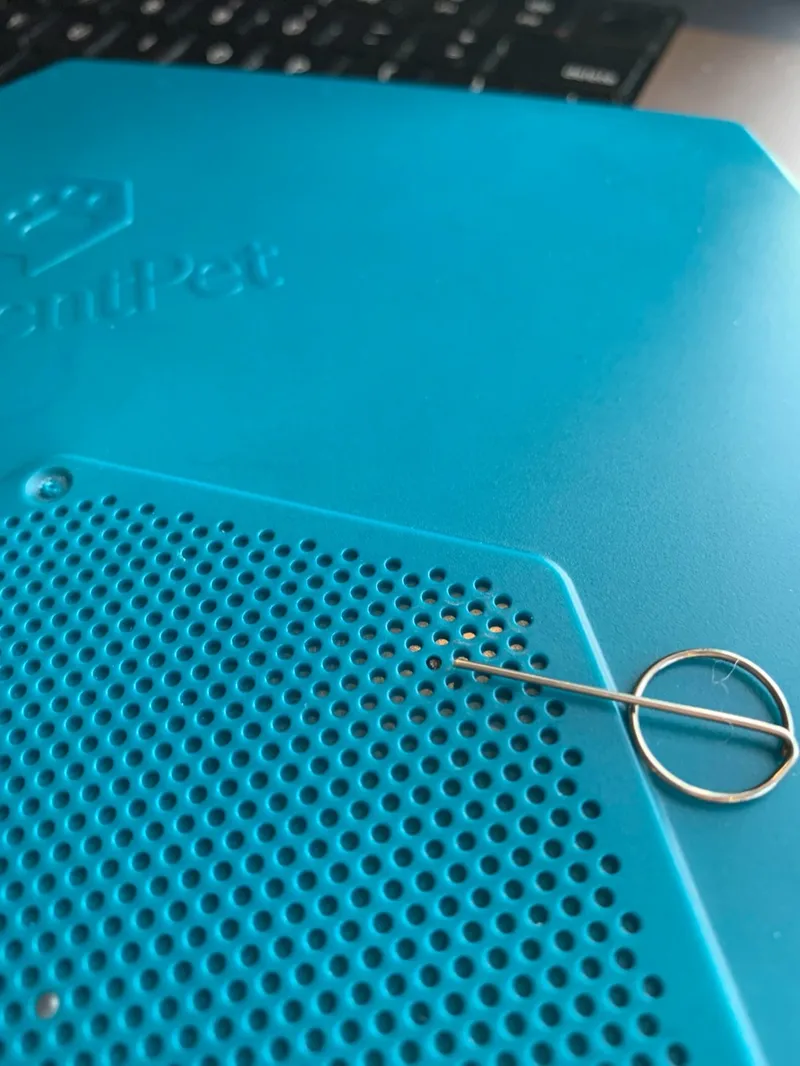
- Do a hardware reset. A hidden button sits in the speaker grill, the size of one hole. Press it once with the linking pin, the small pin that comes inserted in the Button’s paper instructions.
Level 4: Run the battery down to zero
Section titled “Level 4: Run the battery down to zero”- Unplug the Base and leave it running on battery until the battery is completely empty (0 percent). This can take a long time: the battery is designed to last at least 2 weeks without charging.
- When the battery is completely empty, charge the Base.
This can reset hardware components that a few customers have reported as stuck.