

Connect Buttons: Re-link a Button to its Base
Normally you link a Button to your Base only once in the Button’s lifetime. The Base does not forget your Button, even when you replace the Button’s battery.
You re-link a Button when:
- You reset your Base to factory settings. See Connect Base: Reset to factory settings.
- FluentPet support asks you to, to fix a problem.
- You want a Button to pick up new firmware right away.
Re-linking does not delete any data. You only need your Base and your Button, not the app.
Re-link a Button
Section titled “Re-link a Button”- Make sure the Base LED is off.
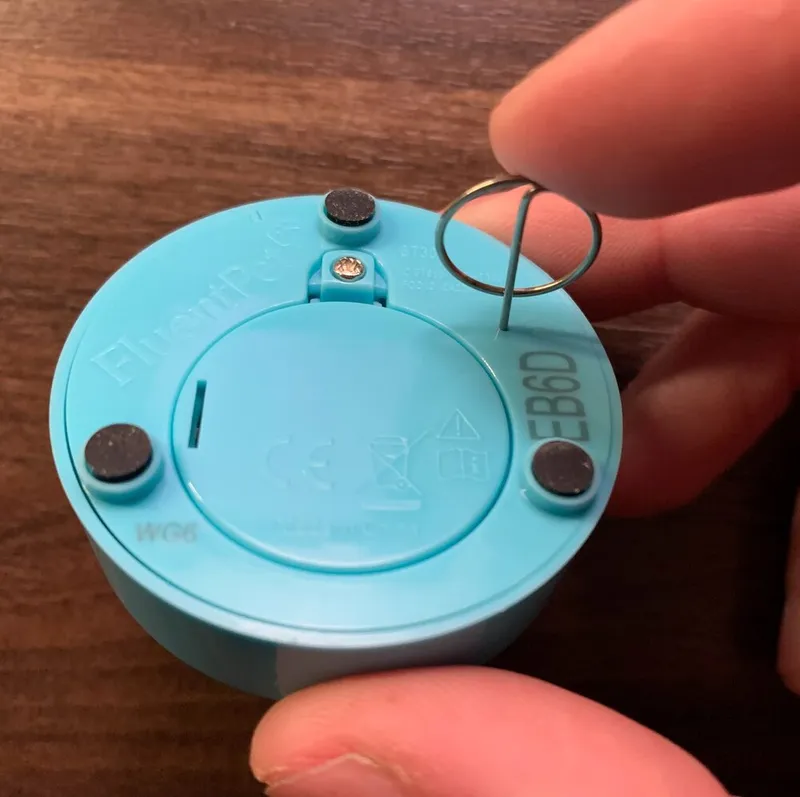
- Insert the linking pin into the link hole until you feel a light click. The linking pin is the small pin that comes inserted in the Button’s paper instructions, and the link hole is on the bottom of the Button. The Button LED breathes cyan for up to 2 minutes.
- Press the Base Button once. The Base LED breathes blue while the Base connects to Wi-Fi and turns solid blue once connected. It then breathes cyan while the Base connects to the FluentPet servers and turns solid cyan once connected. The Base accepts the Button during this whole sequence.
- Listen for three chimes (“bo-be-beep”) that confirm the link. The Button and the Base both show solid cyan for 5 seconds.
- Wait until the Base has finished talking to the FluentPet servers and the Base LED is off.
After the Button is linked, the Base checks with the FluentPet servers whether a new sound needs to be downloaded. The app notifies you that a new Button is linked, even if you set up the Button before. You do not need to record the word again.
Re-link several Buttons at once
Section titled “Re-link several Buttons at once”This is useful after a factory reset. Make sure the Base LED is off first.
You can link several Buttons with one press: put each Button into link mode with the linking pin first, then press the Base Button once. The Base links them one at a time, each with its three chimes. If a Button is still breathing cyan after the others are done, press the Base Button once more.
Link mode lasts up to 2 minutes, so put the Buttons into link mode shortly before you press the Base Button.
All the data comes back. You do not need the app.
Button firmware updates
Section titled “Button firmware updates”Buttons update themselves. After a Base update, each linked Button picks up its new firmware the next time it checks in with the Base, within about a day. The Button shows no light while this happens. The Base must be awake for this, not in travel mode or the low-battery state, so keep the Base charged.
To update a Button right away, re-link it with the steps above. If an update is available, the Button LED alternates cyan and green, one breath each, for up to 30 seconds while it installs. The LED then goes dark, even if the update is still running.
Re-linking a Button to the same Base keeps its word and presses. It only refreshes the link, plays the link chimes and repeats the update check.
Make sure you hear the three chimes at the end of a re-link.
- If you do not hear the chimes, re-link the Button again.
- If that does not work, or the Button or Base stops responding, remove the battery from the Button, put it back in, and try once more.
If the wrong sounds play when you press your Buttons, see Connect Base: Reset to factory settings. For other problems, see Support: Contact FluentPet.