Connect Buttons: Link a Button and record its word
Before you add Buttons, set up your Base and connect it to Wi-Fi. See Connect Base: Set up your Base in the app.
Start linking in the app
Section titled “Start linking in the app”- Make sure the Base LED is off.
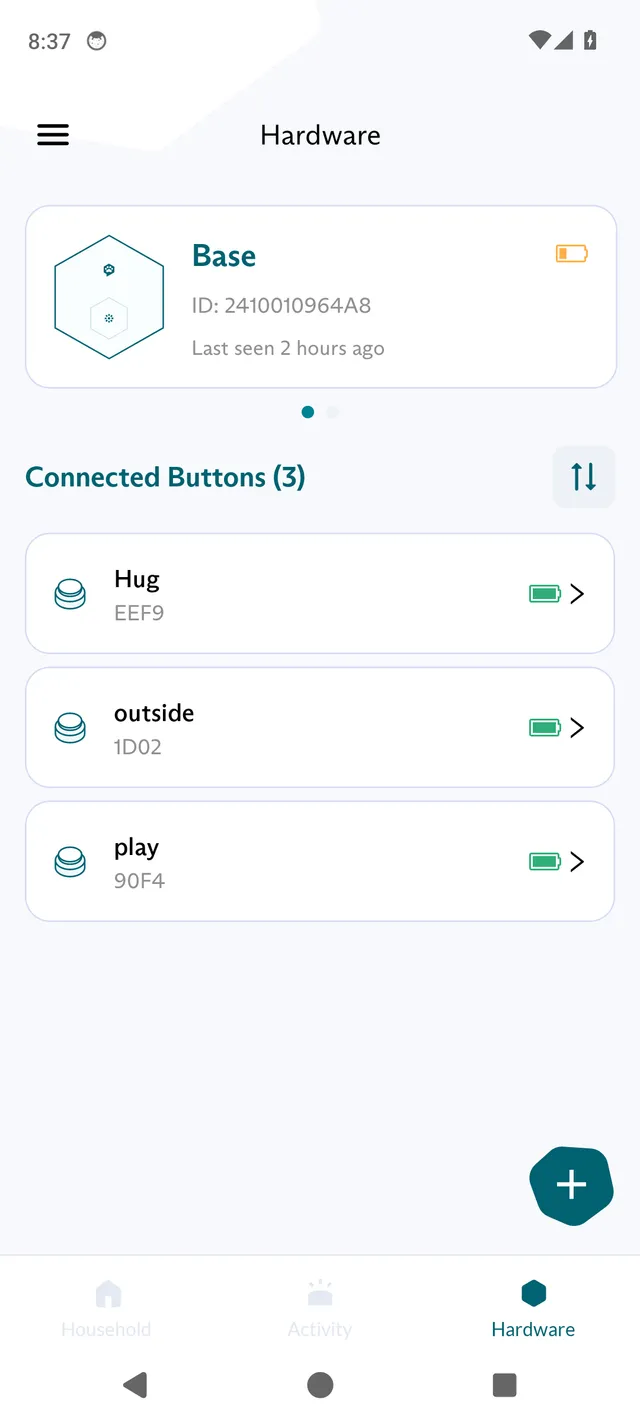
- In the FluentPet app, tap Hardware at the bottom of the screen.
- Tap + at the bottom right, then tap Add Button. The app shows the Button connection screen.
Link the Button to the Base
Section titled “Link the Button to the Base”-
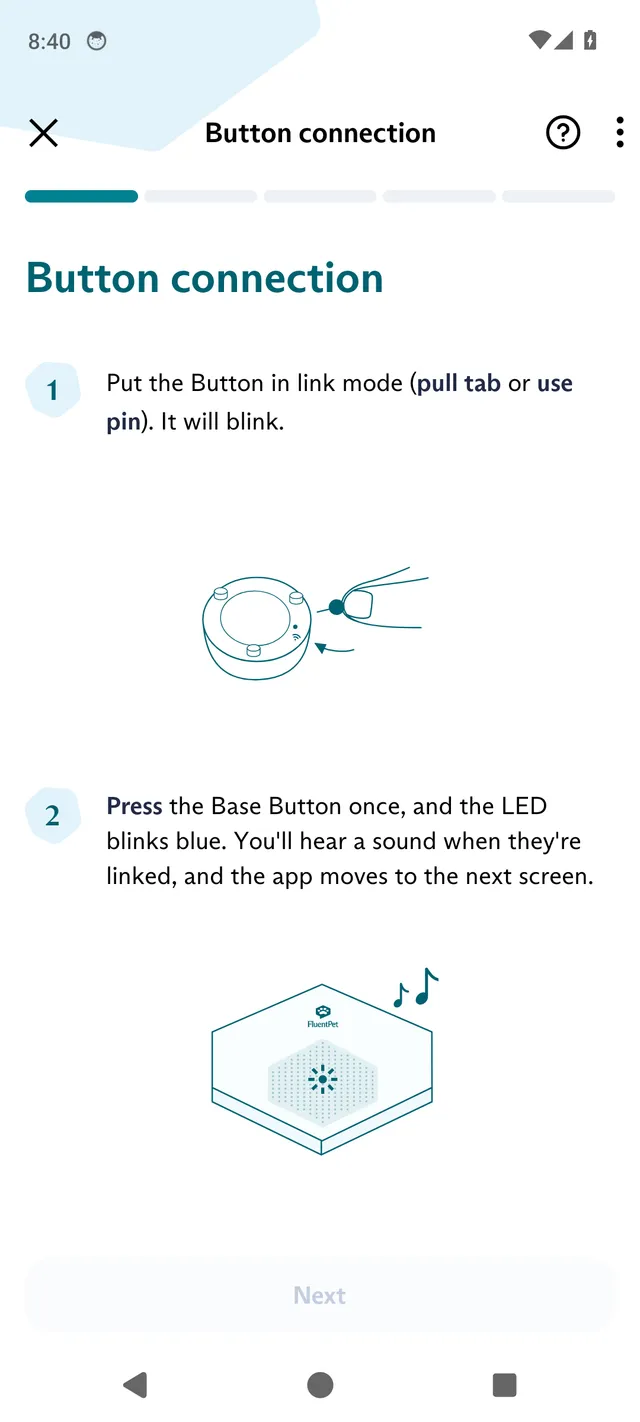
Put the Button in link mode.
- For a new Button, flip it over and pull out the battery tab on the bottom. This powers the Button. Then press the Button.
- If the tab is already removed, use the linking pin, the small pin that comes inserted in the Button’s paper instructions. Insert the linking pin into the link hole until you feel a light click. The link hole is on the bottom of the Button.
The Button LED breathes cyan for up to 2 minutes.
-
Press the Base Button once. The Base LED breathes blue while the Base connects to Wi-Fi and turns solid blue once connected. It then breathes cyan while the Base connects to the FluentPet servers and turns solid cyan once connected. The Base accepts the Button during this whole sequence.
-
Listen for three chimes (“bo-be-beep”) from the Base. The Button and the Base both show solid cyan for 5 seconds. The app moves to the next screen.
If you allowed notifications, the app also notifies you that a new Button is linked. If the app does not move on, see Connect Buttons: Fix a Button the app does not find during setup.
Name the Button
Section titled “Name the Button”A newly linked Button starts with a name like “New Button ID-XXXX”. On Let’s name the Button, type the word for the Button and continue.
Names must be unique within a board, archived Buttons included. Matching ignores upper and lower case, so “Outside” and “outside” count as the same name. If the name is already taken, the app shows “This Button name has already been taken. Please choose a different one.”
If an archived Button holds the name, the app shows “This Button name is used by an archived Button. Please choose a different one.” Choose another name. To bring back the archived Button’s name and history, give the new Button a temporary name, then merge it with the archived Button, as described in Connect Buttons: Replace a Button and keep its history.
Record the word
Section titled “Record the word”- On Add sound for “…”, tap the record button once to start. Do not hold it down.
- Say your word loud and clear.
- When the app has processed the recording, play it back to check it.
- If you are not happy with it, delete the recording and record it again.
- When you are happy with the recording, save it.
For tips on clear recordings, see Connect Buttons: Fix a clipped recording.
Upload the sound to the Base
Section titled “Upload the sound to the Base”The Base needs to download your recording from the FluentPet servers. On Let’s upload your new sound, press the Base Button once, then continue in the app.
Finish
Section titled “Finish”The Button is now linked, and the Base plays your word when you press the Button. Tap Finish, or tap Add more to link another Button.
Your Buttons are listed under Connected Buttons in the Hardware tab.