Connect: Identify the parts of your Base and Buttons
FluentPet Connect has two kinds of hardware: the Connect Base, which plays the words, and Connect Buttons, which your learner presses. This page shows where each part is.
Connect Base
Section titled “Connect Base”Base speaker
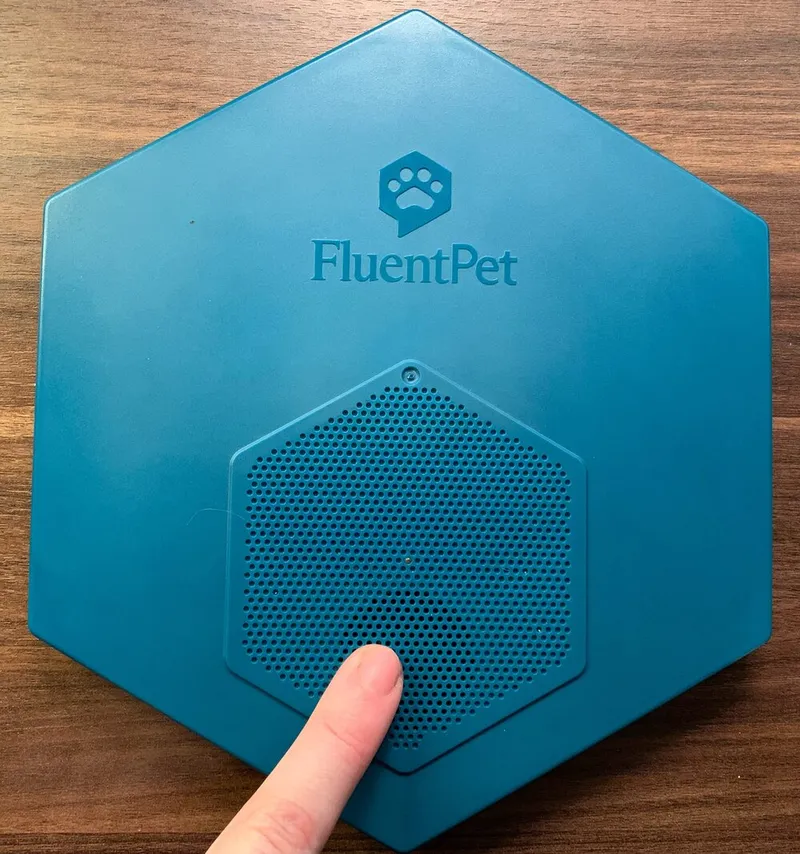
Section titled “Base speaker”The speaker is on the top of the Base, where the open dots (the grill) are.
Base LED
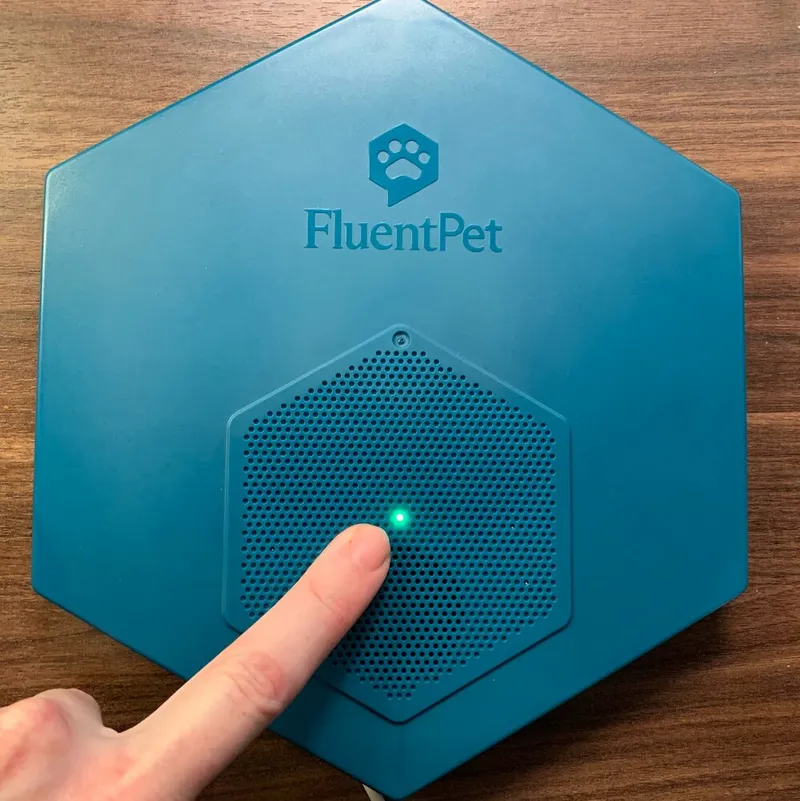
Section titled “Base LED”The LED is in the center of the speaker grill.
Base Button
Section titled “Base Button”The Base Button, marked with a Wi-Fi symbol, is on the bottom of the Base, between the product label and the cable groove.
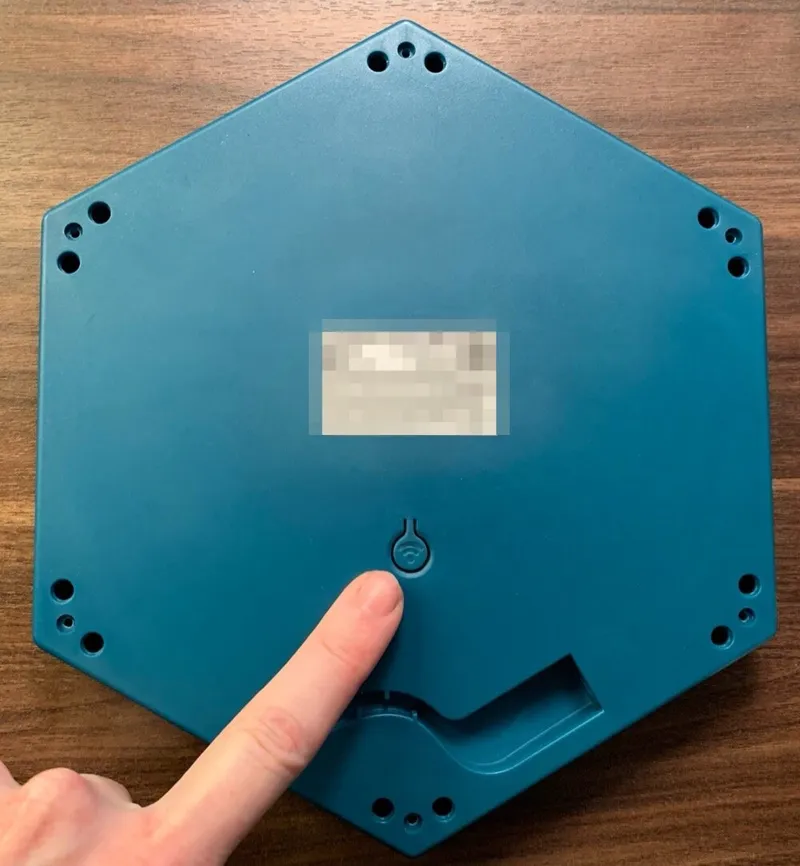
Charging port
Section titled “Charging port”The charging port is on the bottom of the Base, at the end of the cable groove.
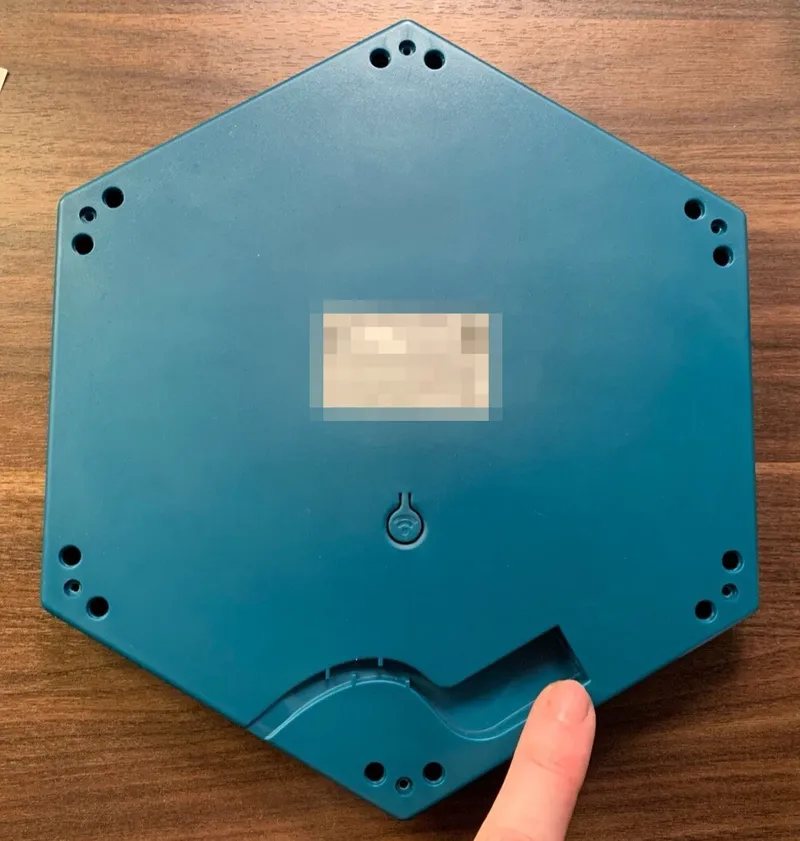
Product label
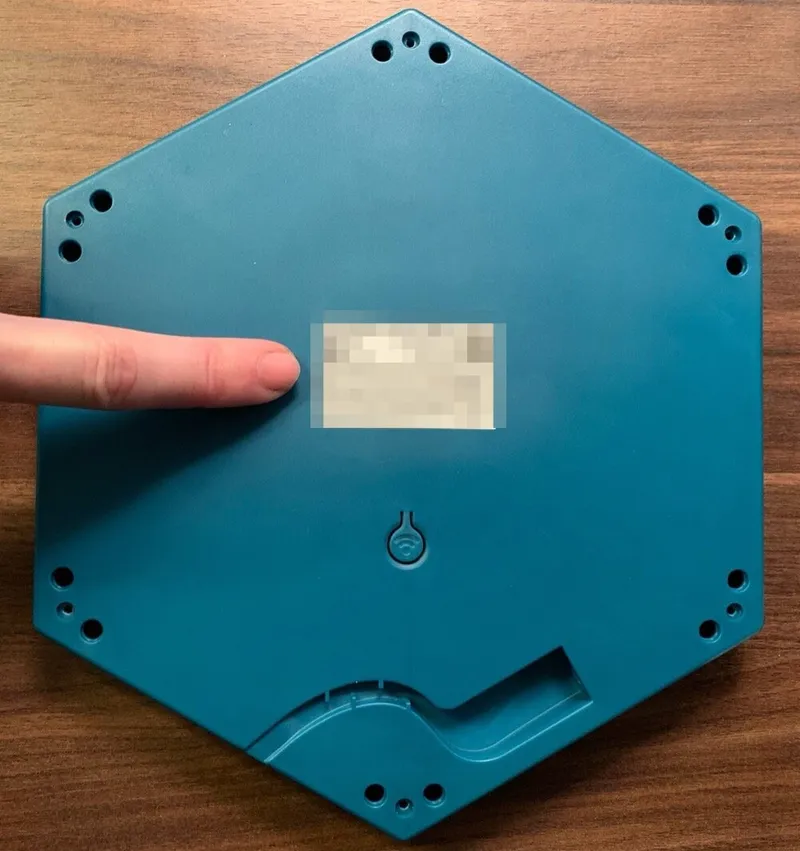
Section titled “Product label”The product label is in the center of the bottom of the Base. It shows the model number, the QR code and the serial number.
- The QR code is at the top right of the label.
- The serial number has 12 characters, made of digits 0 to 9 and letters A to F, and is below the QR code.
You scan the QR code or type the serial number when you set up the Base in the app.
Connect Button
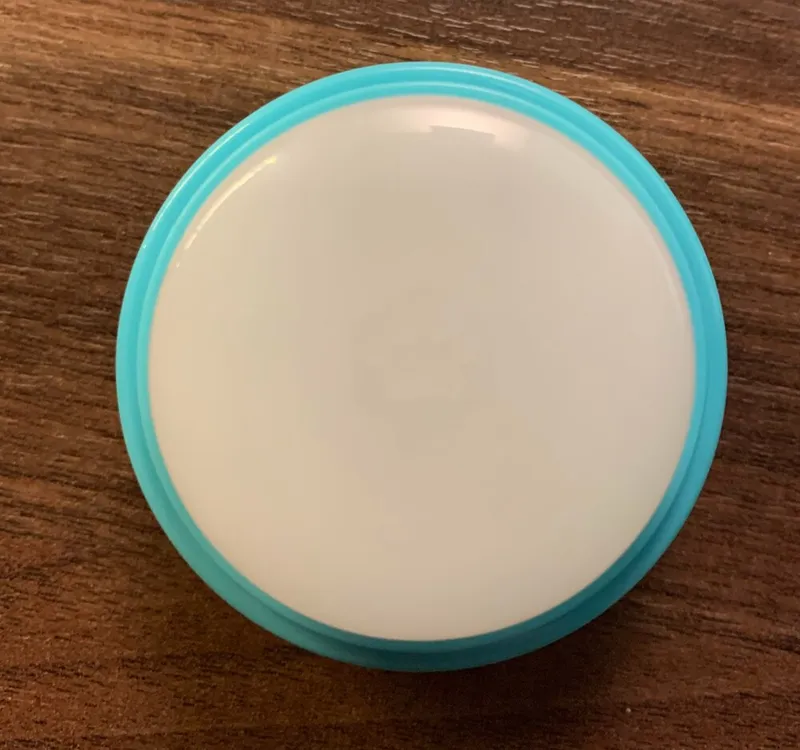
Section titled “Connect Button”A Connect Button needs 200 to 250 g of force to press.
Top cap and LED
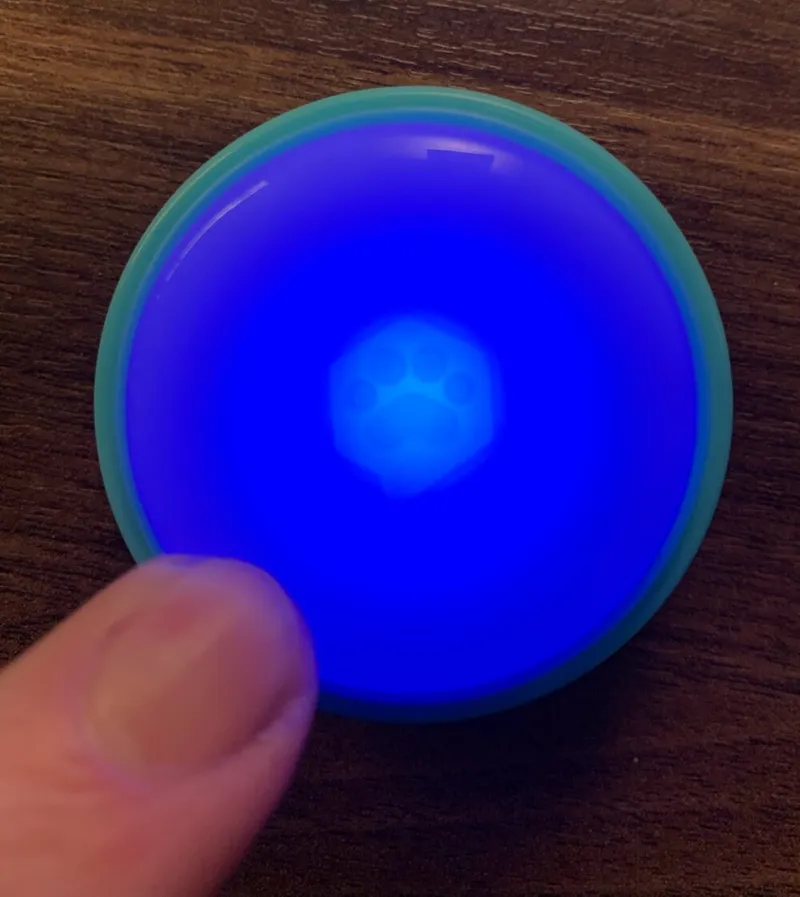
Section titled “Top cap and LED”The top cap is translucent and lights up blue when the Button is pressed.
Link button
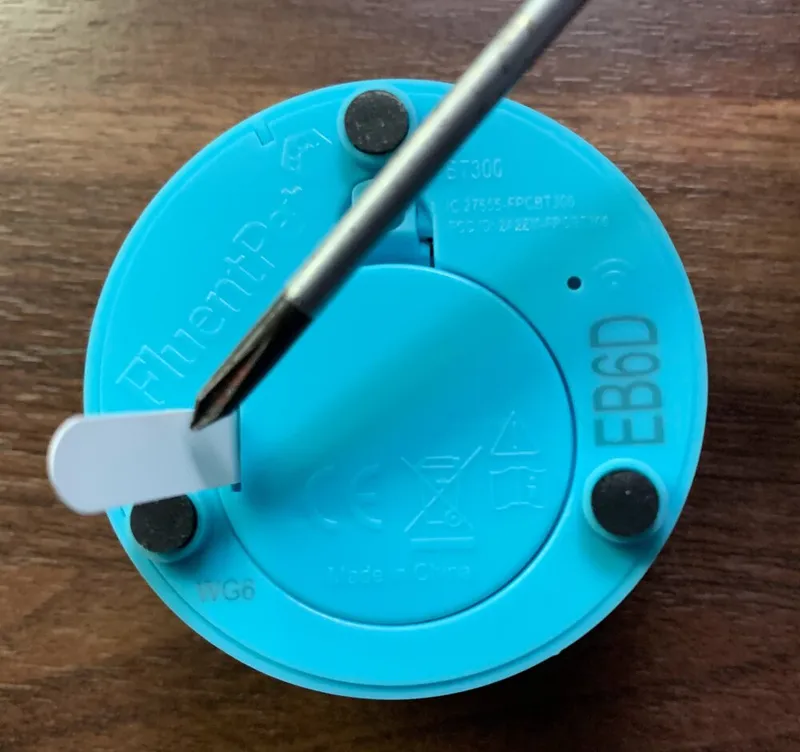
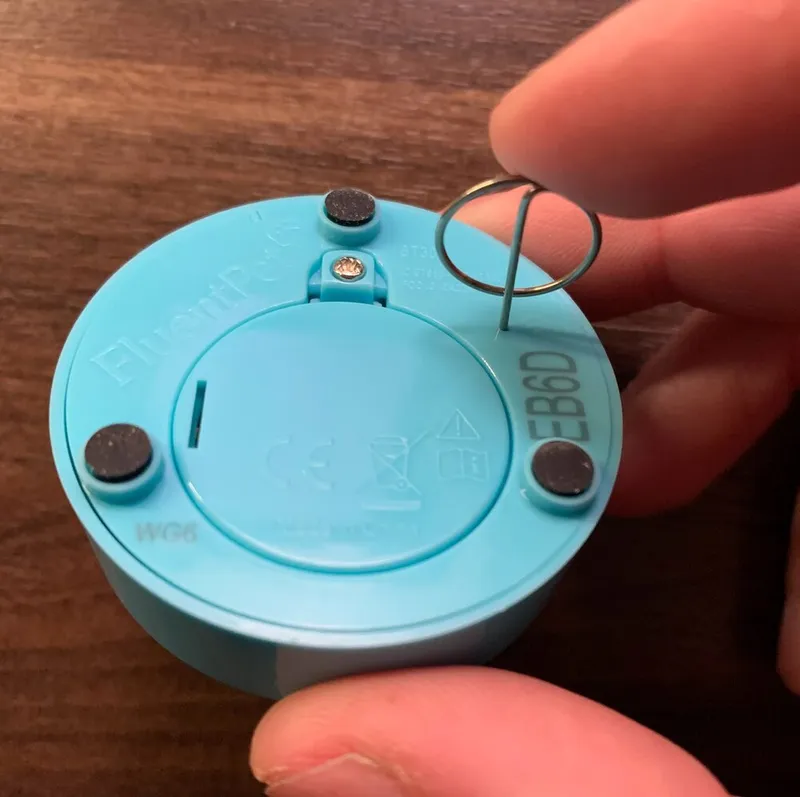
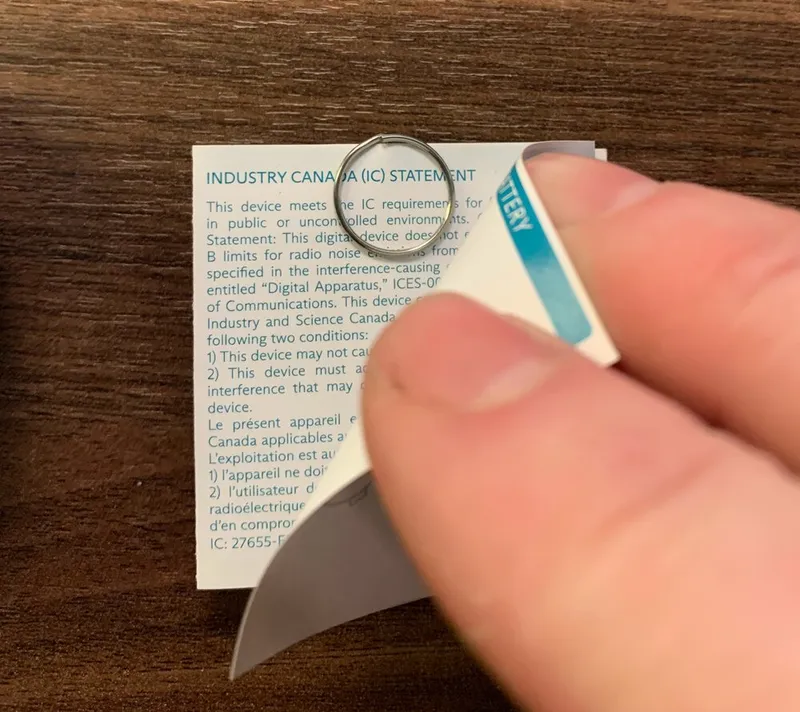
Section titled “Link button”The link button is in a small hole next to the Wi-Fi symbol on the bottom of the Button, beside the Button ID. Press it with the linking pin, the small pin that comes inserted in the Button’s paper instructions.
Button ID
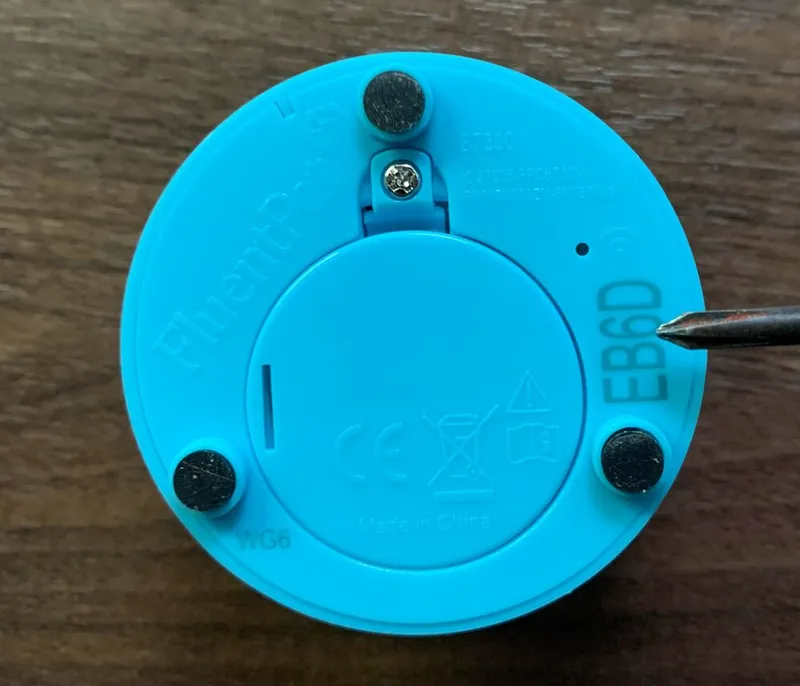
Section titled “Button ID”Each Button has a 4-character ID, made of digits 0 to 9 and letters A to F, etched on its bottom. The app shows the same ID under the Button’s name in the Hardware tab.
Batch code
Section titled “Batch code”The manufacturing batch code is on the bottom of the Button, at the lower left.
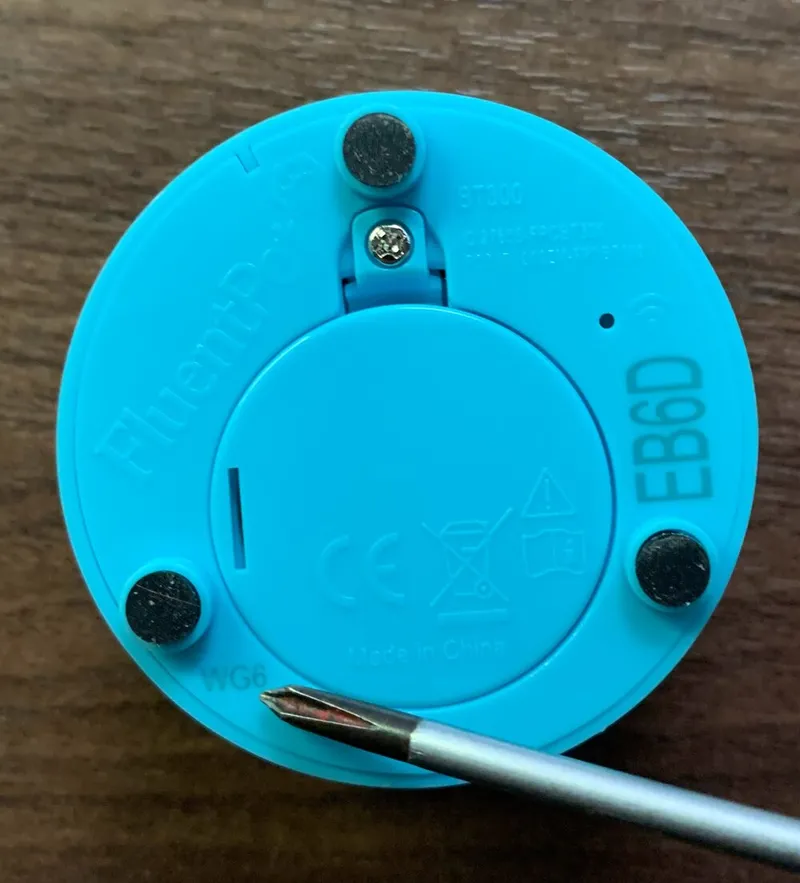
Battery compartment
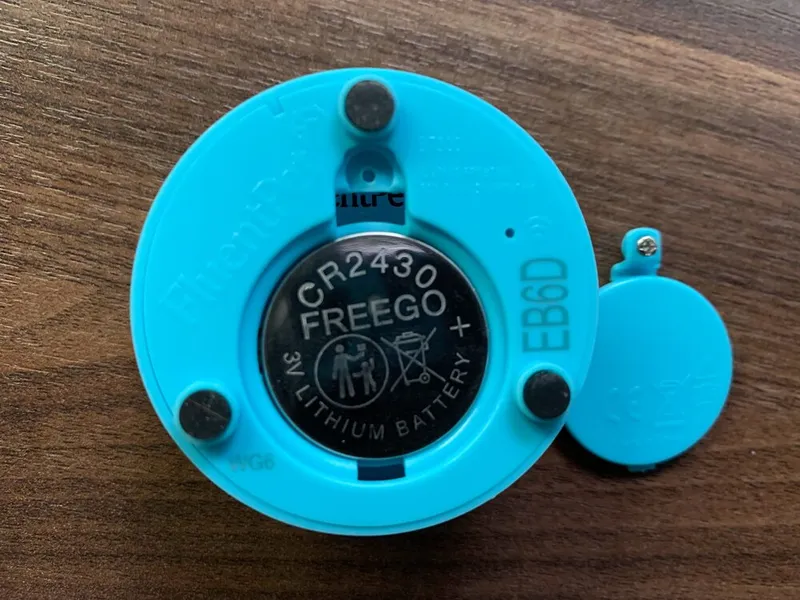
Section titled “Battery compartment”- Open the battery compartment with a small Phillips screwdriver.
- The battery is a CR2430. Insert it with the + side facing out.
- Pull out the battery tab before you use the Button for the first time.
A Connect Button battery lasts 1 to 3 years.