Connect Buttons: Fix a Button the app does not find during setup
When you add a Connect Button, the app shows the Button connection screen. After the Button links to the Base, the app moves to the next screen on its own. If the app stays on this screen, the Button may still be linked.
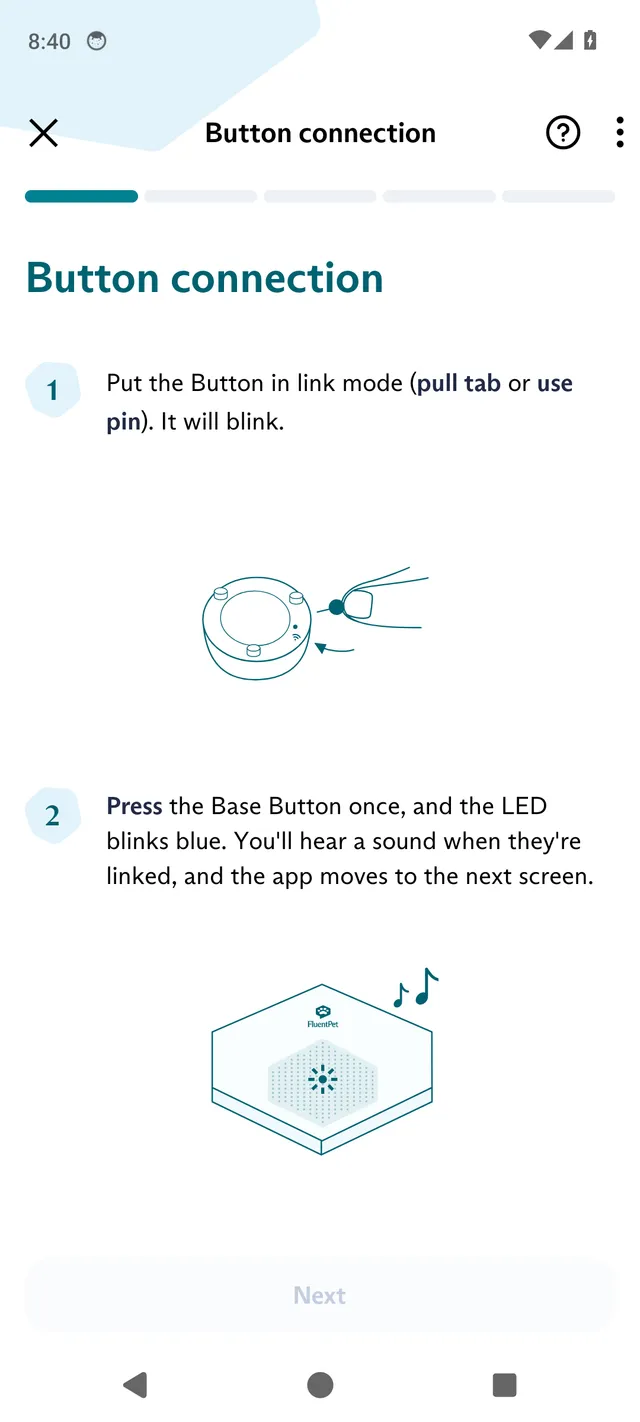
The app says the Button will blink and the Base LED blinks blue. The Button LED breathes cyan in link mode, and the Base LED breathes blue, then cyan, as described in the steps below.
Check the linking steps
Section titled “Check the linking steps”Confirm that you did the following:
-
Make sure the Base LED is off before you start linking.
-
Put the Button in link mode. For a new Button, pull out the battery tab, then press the Button. Otherwise, insert the linking pin into the link hole until you feel a light click. The linking pin is the small pin that comes inserted in the Button’s paper instructions. The Button LED breathes cyan for up to 2 minutes.
-
Press the Base Button once while the Button LED breathes cyan. The Base LED breathes blue while the Base connects to Wi-Fi and turns solid blue once connected. It then breathes cyan while the Base connects to the FluentPet servers and turns solid cyan once connected. The Base accepts the Button during this whole sequence.
-
Listen for three chimes (“bo-be-beep”) that confirm the link.
-
Check that the Button and the Base both show solid cyan for 5 seconds. If the link fails, the Button shows nothing.
-
Wait a few minutes.
Find the Button in the Hardware tab
Section titled “Find the Button in the Hardware tab”If the Button linked but the app did not move on, find the Button in the Hardware tab.
- Close the FluentPet app and open it again.
- Tap Hardware at the bottom of the screen.
- If you have more than one Base, swipe to the Base you linked the Button to.
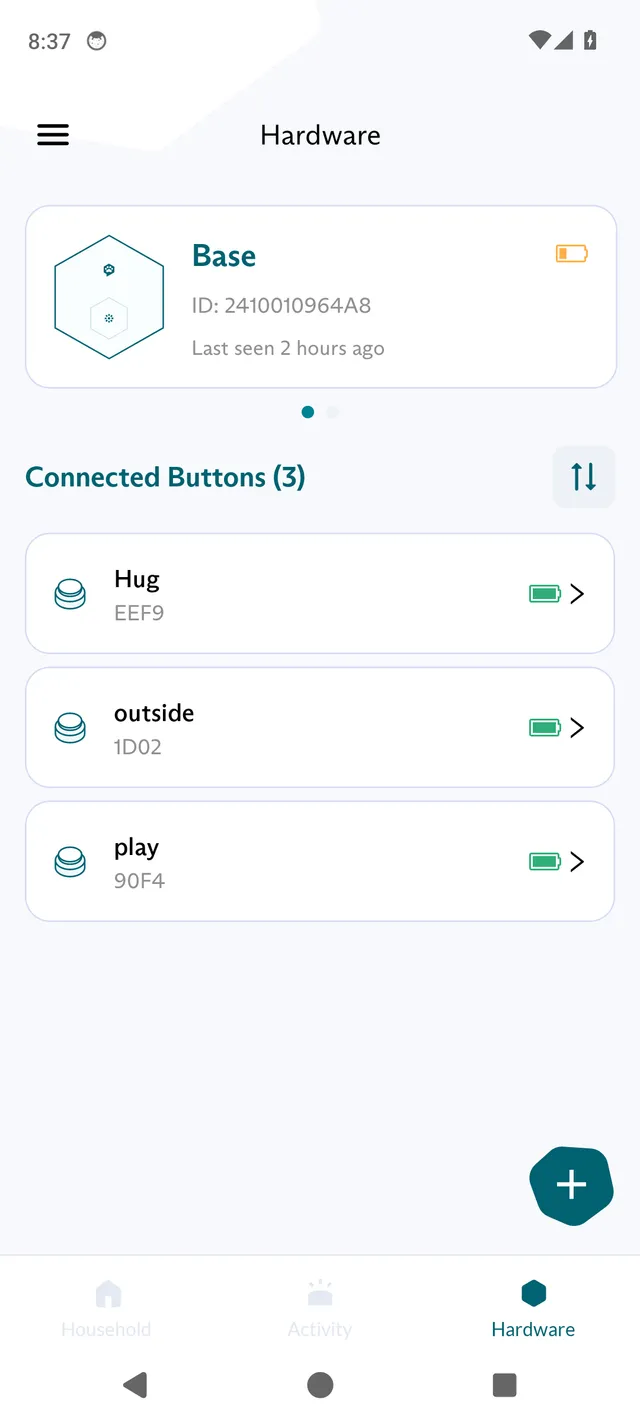
- Find the new Button in the Connected Buttons list. Each Button shows its ID under its name.
- Tap the Button to record its word and continue editing it.