

Connect Buttons: Replace a Button and keep its history
Sometimes you need to replace a Connect Button, for example when a Button is broken or lost, or when you put a sticker on the wrong Button. Unlink the old Button, link the new Button, and merge the two so the old Button’s name, word and history continue on the new Button.
If you want to move a Button to another Base in the same household, see Connect Buttons: Move Buttons to another Base. Merging only works within one household.
Step 1: Unlink the old Button
Section titled “Step 1: Unlink the old Button”- In the app, tap Hardware, then tap the Button you want to replace. If you still have the Button, you can compare the ID on its bottom with the ID under the Button’s name.
- On Button details, tap the three-dot menu icon at the top right, then tap Unlink Button.
- Tap Yes, unlink.
- On Update Base after unlinking, press the Base Button once.
The old Button keeps its name, word and press history. It only loses its link to the Base, and becomes a Classic Button.
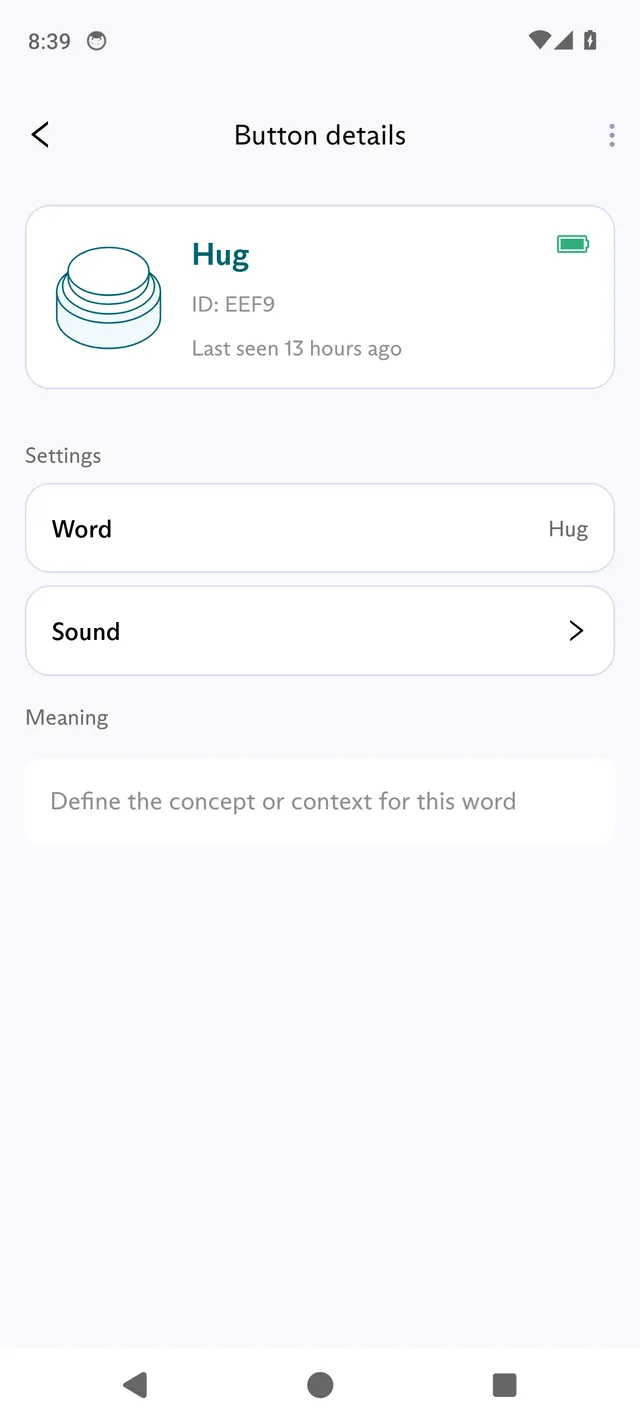
The menu shows Unlink Button for a Connect Button. For a Classic Button, it shows Archive Button instead, because a Classic Button is not linked to a Base. If you see Archive Button, the Button is already unlinked: go on to step 2.
Step 2: Link the new Button
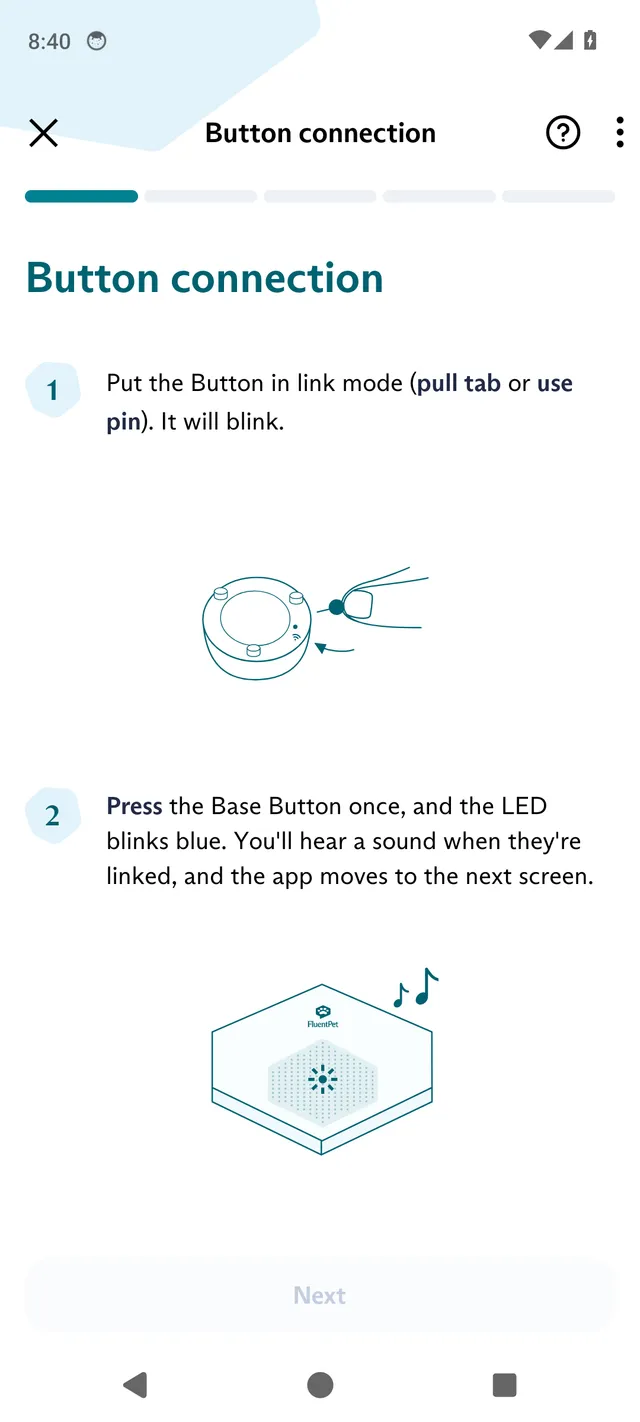
Section titled “Step 2: Link the new Button”- Tap Hardware, then tap + and Add Button.
- Link the new Button to your Base, as described in Connect Buttons: Link a Button and record its word.
- Give the new Button a different, temporary name. The old Button keeps its name, so the app refuses the same name (“This Button name has already been taken. Please choose a different one.”). After the merge, the Button takes the old Button’s name.
- Record a word for the new Button only if the old Button has no word. The remaining Button keeps the old Button’s word.
Step 3: Merge the new Button with the old one
Section titled “Step 3: Merge the new Button with the old one”- In the Hardware tab, tap the new Button. On Button details, tap the three-dot menu icon at the top right, then tap Merge. You can also tap the notification that the new Button is linked.
- On Merge button history, tap the old Button in the list of Classic Buttons. Unlinked and archived Buttons appear there.
- Tap Merge, then confirm with Replace. The merge cannot be undone.
- On Update Base after merging, press the Base Button once.
What the merge does
Section titled “What the merge does”The remaining Button is the old one:
- The entry you created for the new Button in step 2 disappears. One Button remains, with the old Button’s name, settings and all presses, linked to the new Button.
- The remaining Button keeps its own word if it has one. Otherwise it takes the new Button’s recording.
New presses of the new Button show up under the same word, and the Button’s history stays in your Activity feed.